First-Time Rider Instructions
About TripShot
Columbia Transportation has partnered with TripShot to offer a seamless shuttle bus experience.
TripShot is a simple, powerful platform that manages, tracks, and optimizes transportation services and fleets. It offers Columbia shuttle riders trip planning features and the ability to travel with predictability by signing up for True-Time® Notifications and Alerts.
To learn more about how to use each of TripShot's features, view the FAQ below.
- For the best on-the-go experience, download the TripShot app.
- You can also access TripShot through the Rider Web Portal.
Frequently Asked Questions (FAQ)
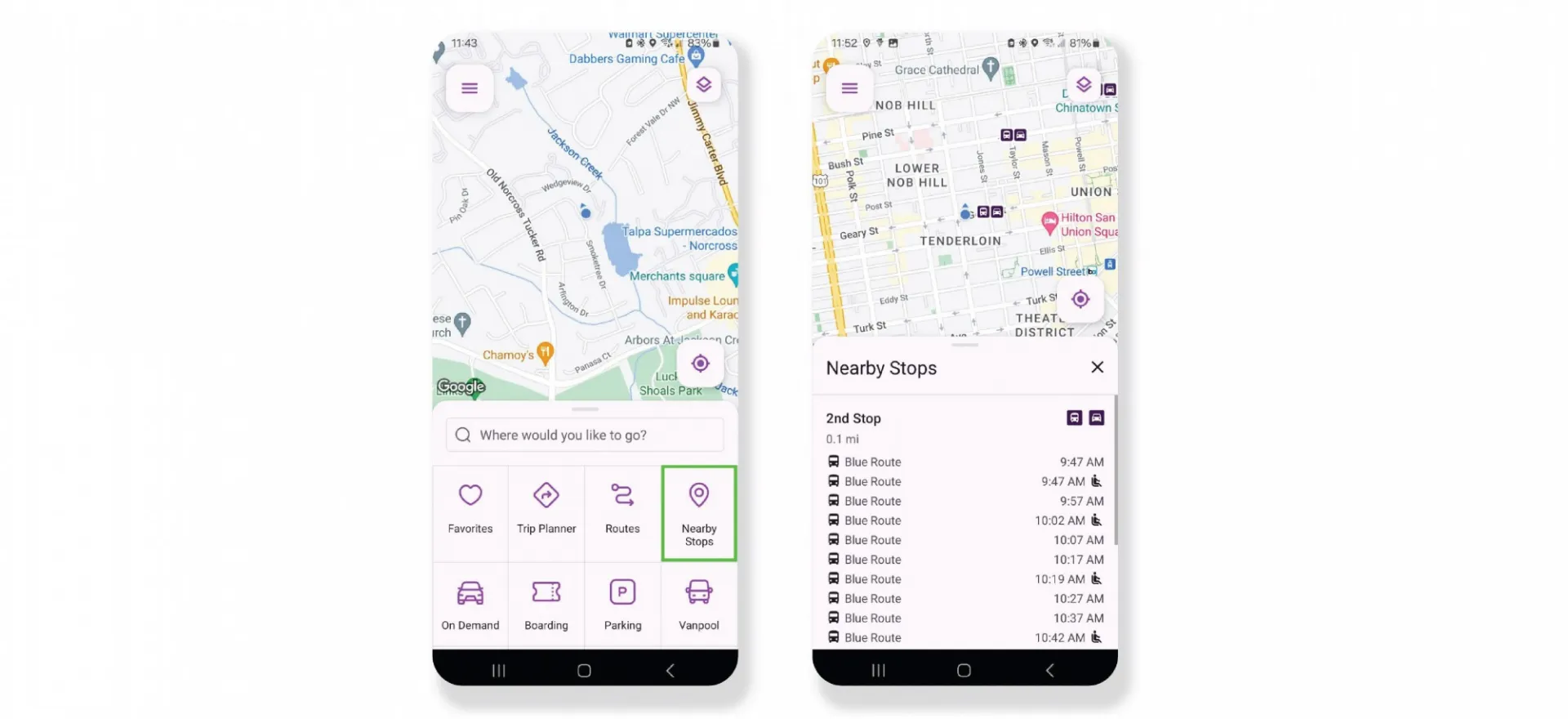
From the Home screen there are three ways to find your route and get travel information.
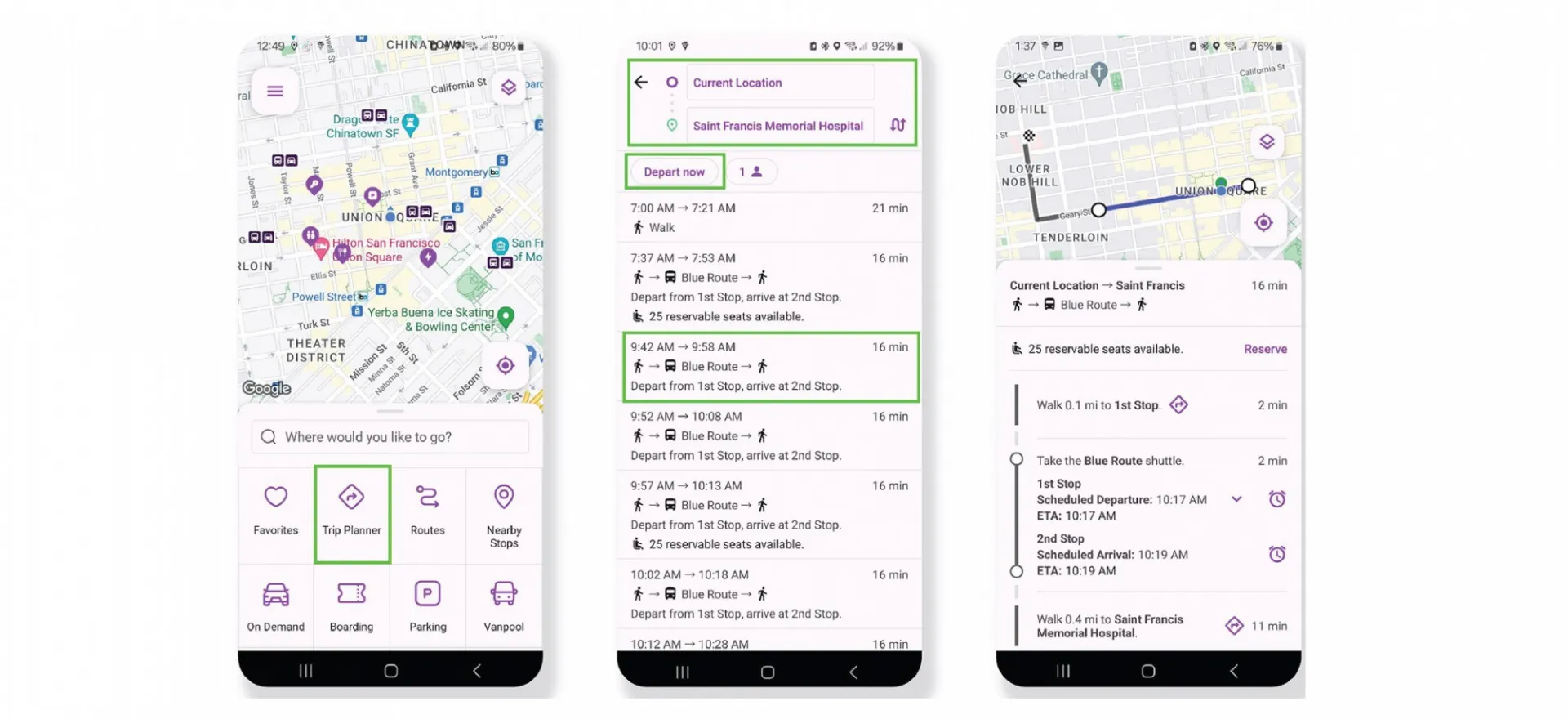
- Select Trip Planner: to see options from your pickup location to your destination.
- Select Routes: to see all your route options and schedules.
- Select Nearby Stops: to see stops near your current location.
- Touch Trip Planner and enter a Pickup and Dropoff location.
- Select Depart Now to change your pickup time to a later time or date (if applicable).
- View results below. Select a “plan” to view details, make reservations, or set up notifications.
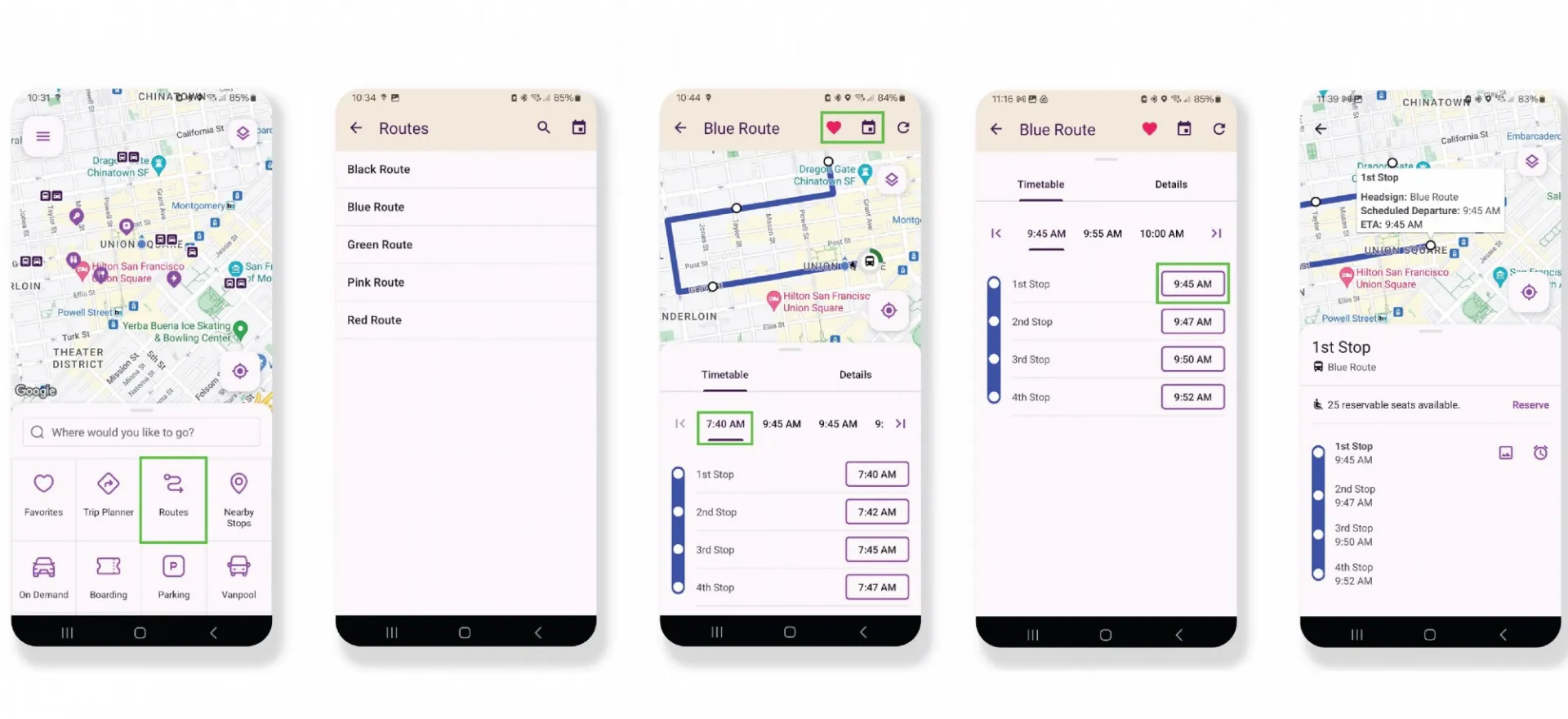
- From the Home screen select Routes, then select your preferred route from the list.
- Select a Ride Time. Scroll right/left to view additional Ride Times.
- Selecting a Ride Time will update the Stop Times for this route.
- Use the heart icon to Favorite this route. Use the calendar icon to view schedules for other dates.
- Select a Stop Time to view stop details, see a picture of the stop, or sign up for notifications.
Select Nearby Stops to view stops near your current location.
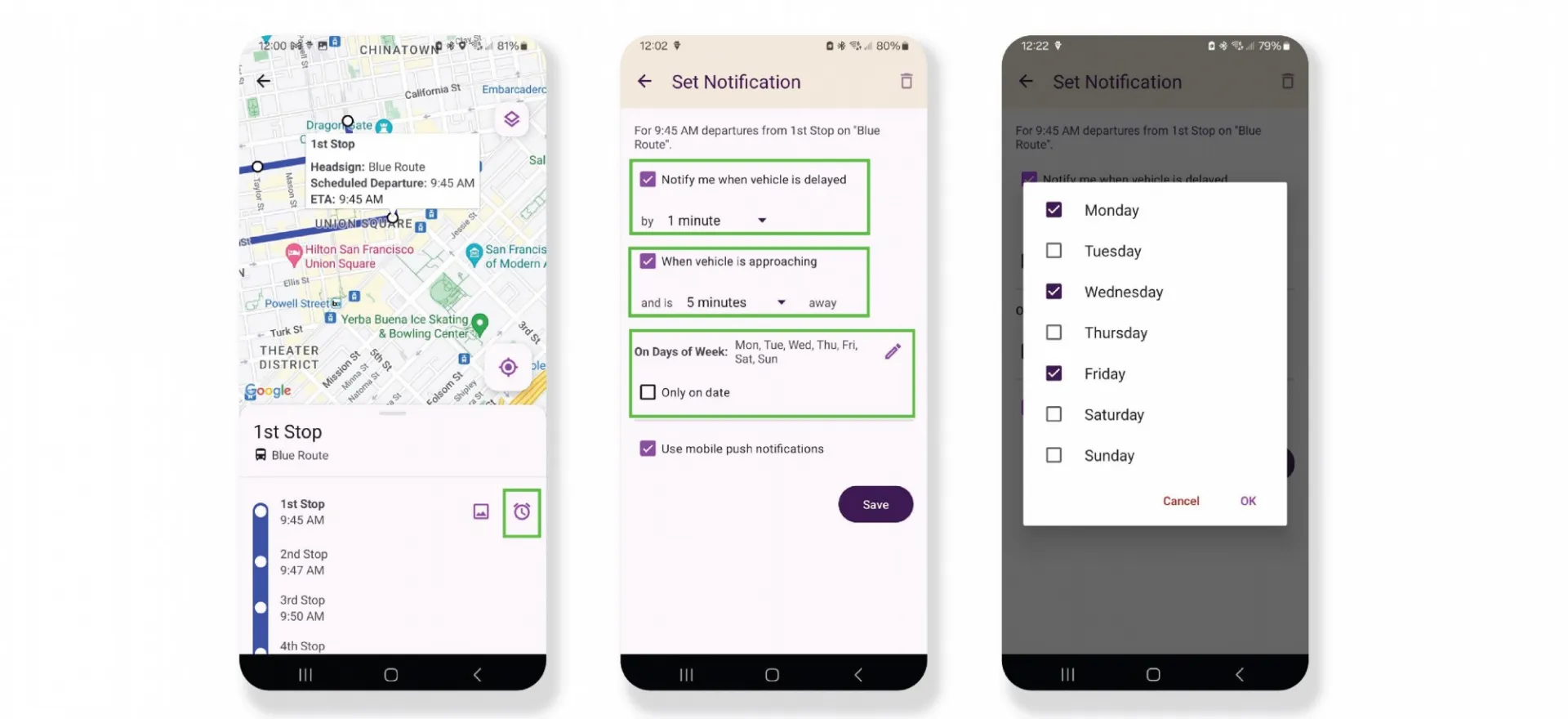
- Subscribe to receive True-Time® push notifications about delayed or approaching vehicles.
- Select a Trip Plan or Route and Stop to view details.
- Select the alarm icon to subscribe to notifications.
- Set the number of minutes for your notifications.
- Use the pencil to set up the days you would like to receive notifications.
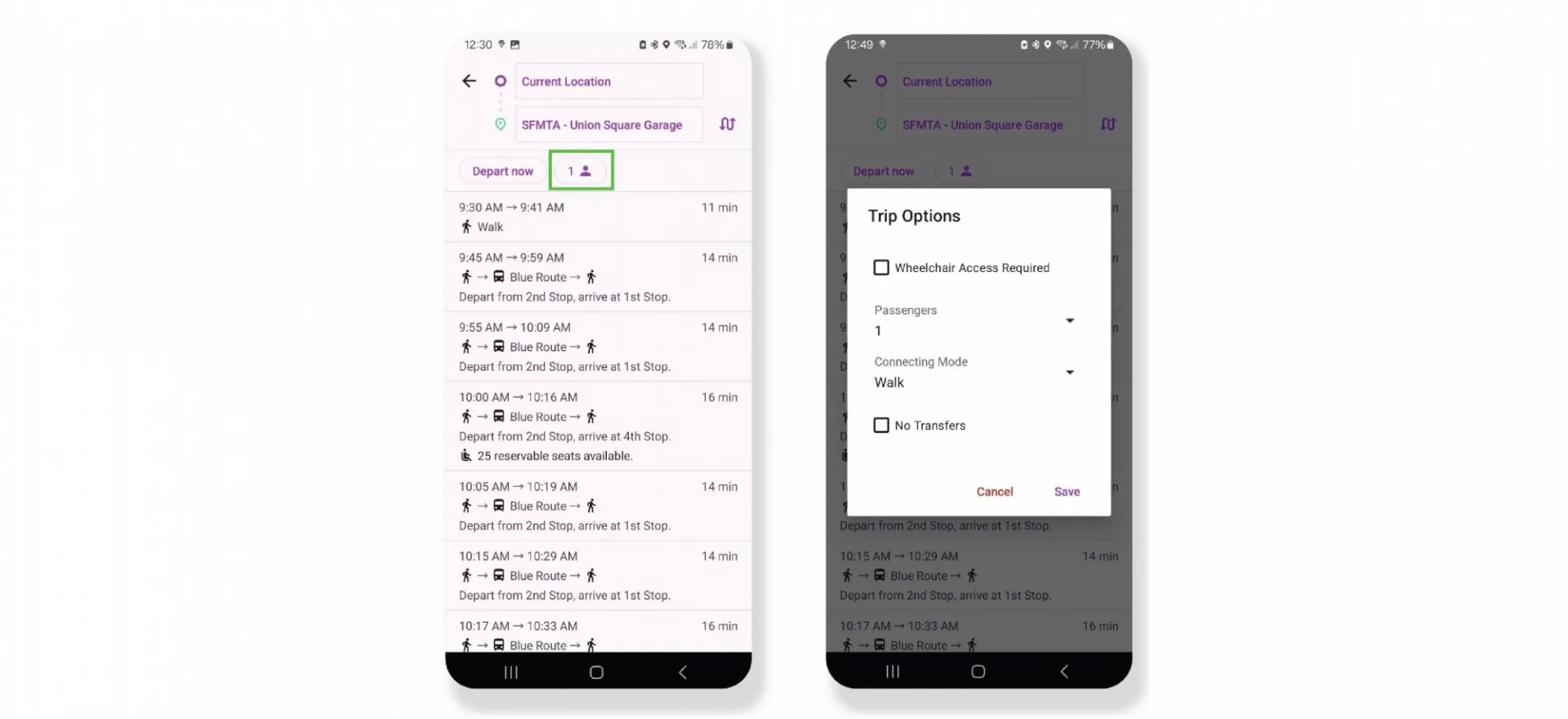
Connecting mode describes the ways in which you are moving around.
- When using the Trip Planner, revising your Connecting Mode will increase or decrease your search area. The faster you can move around, the more options available.
- Select the person icon to change your Connecting Mode to Walk, Bike, or Drive.
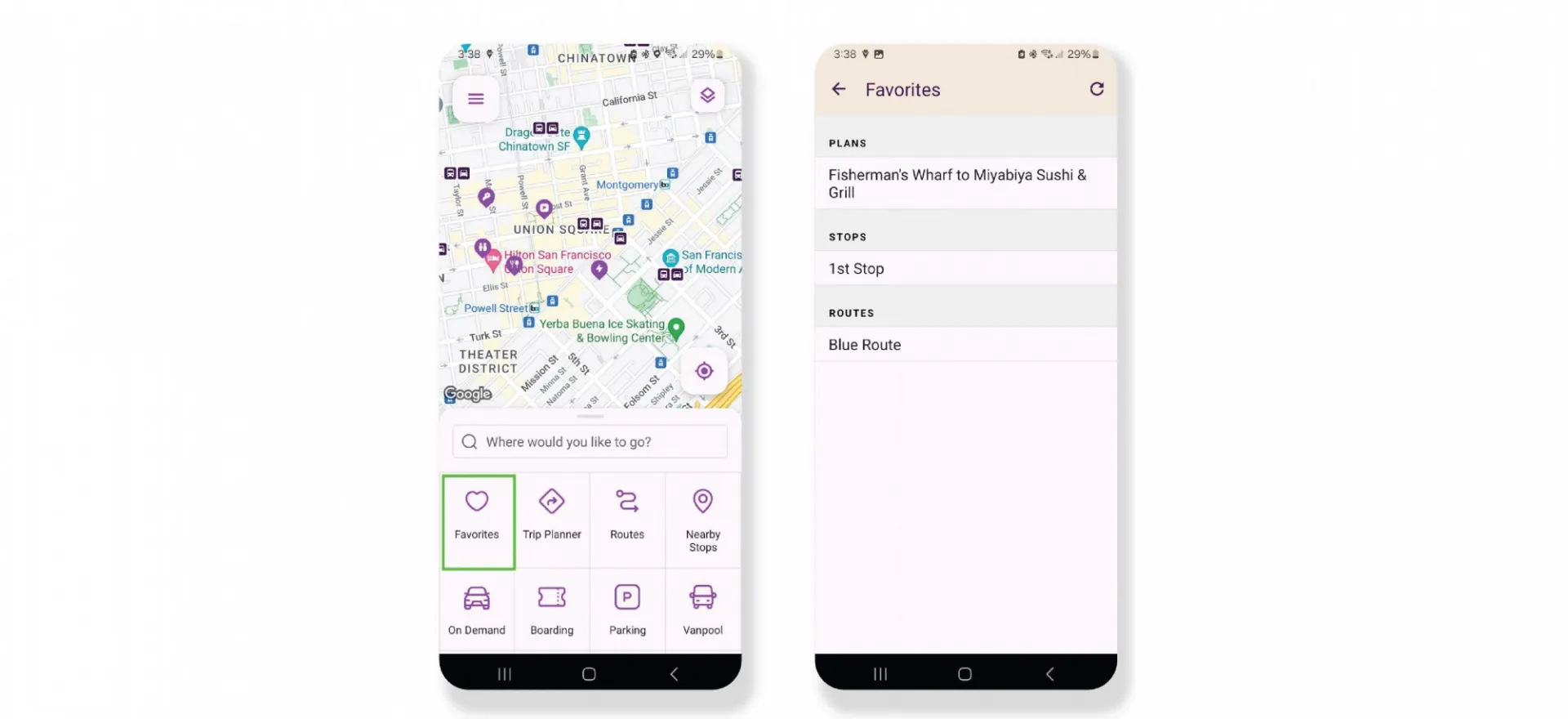
- Access Favorites from the Favorites tile on the Home screen.
- Save a route, trip plan, or stop to Favorites for quick access.
- Use the heart icon to set a route, trip plan, or stop as a Favorite.